- heic
- windows
How to Convert HEIC to PDF on Windows (and Combine iPhone Photos into One PDF)
Windows can't read iPhone photos without two Store extensions, and its print-to-PDF crops them. Here's what works: the built-in route and its catches, and how to combine HEIC photos into one PDF in your browser.
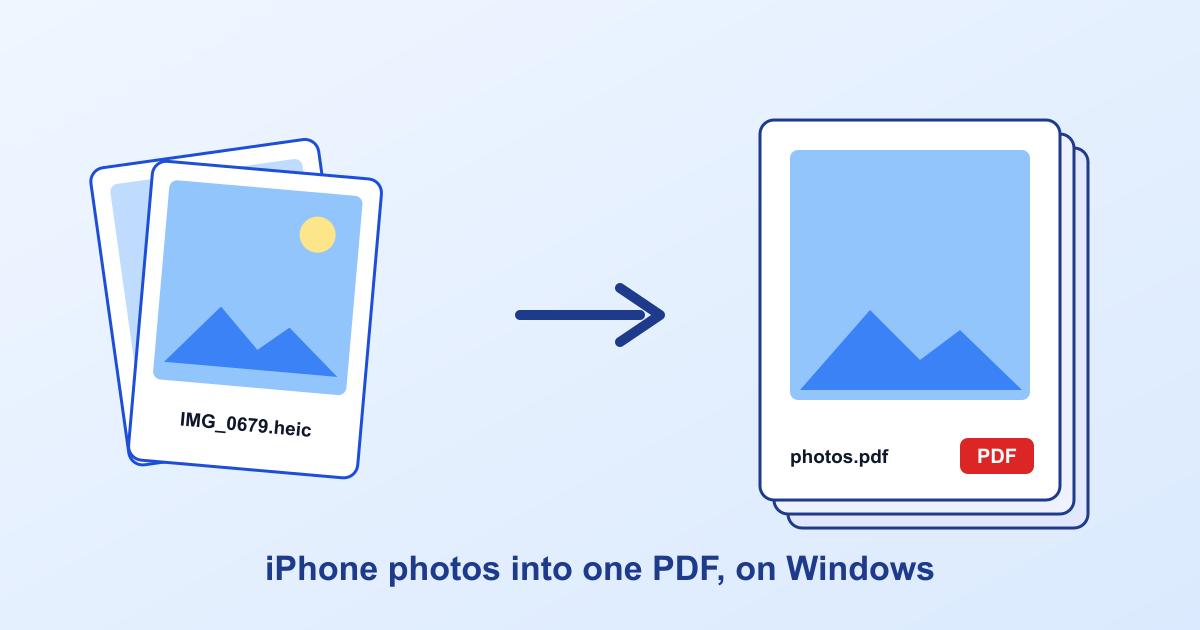
It's usually a form that asks for it. The visa portal wants your documents "as a single PDF". Your accountant wants the receipts in one file, not twelve attachments. So you take the photos on your iPhone, email them to yourself or copy them across with a cable, and there they sit on your Windows PC: IMG_0679.HEIC, IMG_0680.HEIC, and a Photos app that won't open either of them.
Short answer: Windows can do this, but only after you install two extensions (one of them paid), and its print-to-PDF crops your photos unless you catch one checkbox. The quicker route is a browser tool that reads HEIC itself and puts every photo on its own page of one PDF.
Why Windows struggles with iPhone photos
Since 2017 iPhones save photos as HEIC. The picture inside is compressed with HEVC, the same codec as 4K video, and Windows doesn't ship a decoder for it. That's why the Photos app shows "The HEVC Video Extension is required to display this file." instead of your receipt.
Microsoft's fix is two downloads from the Microsoft Store. HEIF Image Extensions is free. HEVC Video Extensions costs about a dollar, and you need both. On a work laptop where the Store is blocked, you can't install either, and that's where a lot of people give up.
The built-in route: Print to PDF
Once both extensions are in, Windows can make the PDF itself:
- Put the photos in one folder and select them all in File Explorer.
- Right-click and choose Print. On Windows 11 it's under Show more options.
- Set the printer to Microsoft Print to PDF and the layout to a full page photo.
- Untick "Fit picture to frame". This is the step everyone misses.
- Press Print and choose where to save the PDF.
That checkbox is the catch. It's ticked by default, and it enlarges each photo until the page is full, so anything that doesn't fit is cut off. A phone photo is a different shape from A4 or Letter, so you lose a strip off two sides of every page. Windows has no setting to make the untick stick; you do it each time.
The other catch is order. The photos go into the PDF in the order File Explorer happens to list them, and the dialog gives you no way to drag one up. Honestly, for two or three photos it's fine. For a stack of twenty receipts it gets tedious fast.
The quicker route: a browser tool
We built the HEIC to PDF tool because of exactly those two catches. It reads HEIC on its own, so it needs neither extension, and it works on a locked-down office PC as long as there's a browser.
- Drop up to 200 photos. HEIC, and JPG or PNG mixed in, all go into one PDF.
- "Sort by name" puts iPhone photos in the order you took them. Arrows move any photo up or down.
- A4 or Letter, and a wide photo gets a landscape page. The whole photo is always on the page; nothing is cropped.
- "Smaller file" scales each photo down so a 20-page PDF still fits in an email.
The part we care about most: the photos never leave your computer. Most online converters upload each photo to a server, convert it there and send it back. For a passport scan or a payslip, we don't think that's a trade worth making. You can check ours by opening the browser's Network tab while it runs. You'll see the page's own code load, and no photo going out.
What it can't do yet: it doesn't read the text in your photos (no OCR), so the PDF holds pictures of pages rather than searchable text. For most forms and receipts that's what's asked for anyway.
Stop it happening next time
If you regularly send photos to Windows, change one setting on the iPhone: Settings → Camera → Formats → Most Compatible. New photos are saved as JPG from then on, which every PC and upload form accepts. You give up a little storage, since JPG files are about twice the size. For a lot of people that's a fair swap.
FAQ
Can Windows convert HEIC to PDF on its own?
Only after you add two Microsoft Store extensions: HEIF Image Extensions, which is free, and HEVC Video Extensions, which costs about a dollar. Then File Explorer can print the photos to Microsoft Print to PDF. Untick 'Fit picture to frame' first, or the edges of your photos get cut off.
How do I combine several HEIC photos into one PDF?
Select them all and send them to one PDF. In a browser tool that takes HEIC directly, that's one drop and one click, with the order you choose. With Windows' own print dialog you need both extensions installed, and the photos go in the order File Explorer lists them.
Why does my PDF cut off the edges of the photos?
Windows' Print Pictures dialog has 'Fit picture to frame' ticked by default. It enlarges each photo to fill the page, and whatever doesn't fit is cropped. Untick it before you press Print. There's no setting to make that stick, so it has to be done every time.
Is it safe to use an online HEIC to PDF converter?
Most of them upload every photo to their server to convert it. If the photos are of an ID, a payslip or a medical form, that's a real thing to weigh. A converter that works inside your browser never sends the photos anywhere, and you can check that in the browser's Network tab.
How do I stop my iPhone saving photos as HEIC?
Settings → Camera → Formats → Most Compatible. New photos are then saved as JPG, which every PC and website opens. Photos you've already taken stay HEIC, so you'll still need to convert those.