- images
- compression
How to compress photos for email (without losing quality)
Photos too big to email? Here's how to make them smaller so they fit Gmail's 25 MB limit, without losing quality — and the truth about whether email reduces photo quality at all.
Picture this. You take five photos of your kid's school play on your iPhone, hit Share, pick Mail, type your aunt's address, hit Send. Gmail rejects the email. Attachment too big. You're not even sure why because you only attached five photos.
Five iPhone photos at typical resolution is around 22-30 MB. Gmail's hard cap is 25. Outlook on most enterprise tenants is 10. So even modest holiday batches blow through the limit, and you end up either sending them in five separate emails or, more likely, giving up and texting them instead.
The fix is to compress before attaching. Done right, your aunt cannot tell the difference between a 6 MB photo and a 600 KB version of the same photo on her screen. Done badly, you get the blurry blocky mess everyone has received at least once.
What is the Gmail attachment size limit?
Gmail's attachment size limit is 25 MB per email, and that is the total of every file combined, not per file. Outlook caps most enterprise accounts at 10 MB. Go over the limit and Gmail either bounces the message or pushes your files into a Google Drive link instead of a normal attachment. Compressing the photos first keeps them as inline attachments your recipient can just open.
Does emailing a photo reduce its quality?
Here's a fear we hear constantly: you compress a photo, attach it, and assume the email service squashes it further on the way out. Good news — it doesn't. Gmail, Outlook, and Apple Mail send your attachment exactly as you attached it, byte for byte, up to their size limit. There is no quality-stealing recompression step. The photo your recipient downloads is identical to the file you sent.
So where does the "email ruined my photo" feeling come from? Two places. First, the sender over-compressed it themselves before attaching — quality 40 in some random tool, then surprise at the blocky result. Second, pasting a photo inline into the message body is not the same as attaching it; some clients downscale inline images to fit the layout. If quality matters, attach the file, don't paste it into the body.
The one real exception: if your file is over the limit, Gmail offers to send it as a Google Drive link instead of an attachment. That link points at your full-quality original — nothing is compressed — but your recipient now has to click through to Drive rather than just opening an attachment. Compressing first keeps it a normal, openable attachment and avoids the whole detour.
The two knobs you can actually change
Image compression has two real levers. Everything else is window dressing.
The first is quality. JPG and WebP both throw away some image data when they save, and the quality slider controls how much. At quality 100 nothing is discarded. At quality 50, a lot is. The interesting range is 70 to 90: massive file-size savings, no visible difference to anyone not looking at it on a 27-inch monitor.
The second is dimensions. Your iPhone shoots at roughly 4000 by 3000 pixels. Your aunt is going to look at the photo on a 1920-wide laptop screen or a 1170-wide iPhone. Resizing to 1600 pixels on the long edge cuts the file by a huge margin and she will never notice.
The recipe that works for 90% of emails
For photos you're sending to people who'll look at them on a screen:
- Resize to 1600 px on the long edge
- Save as JPG at quality 80
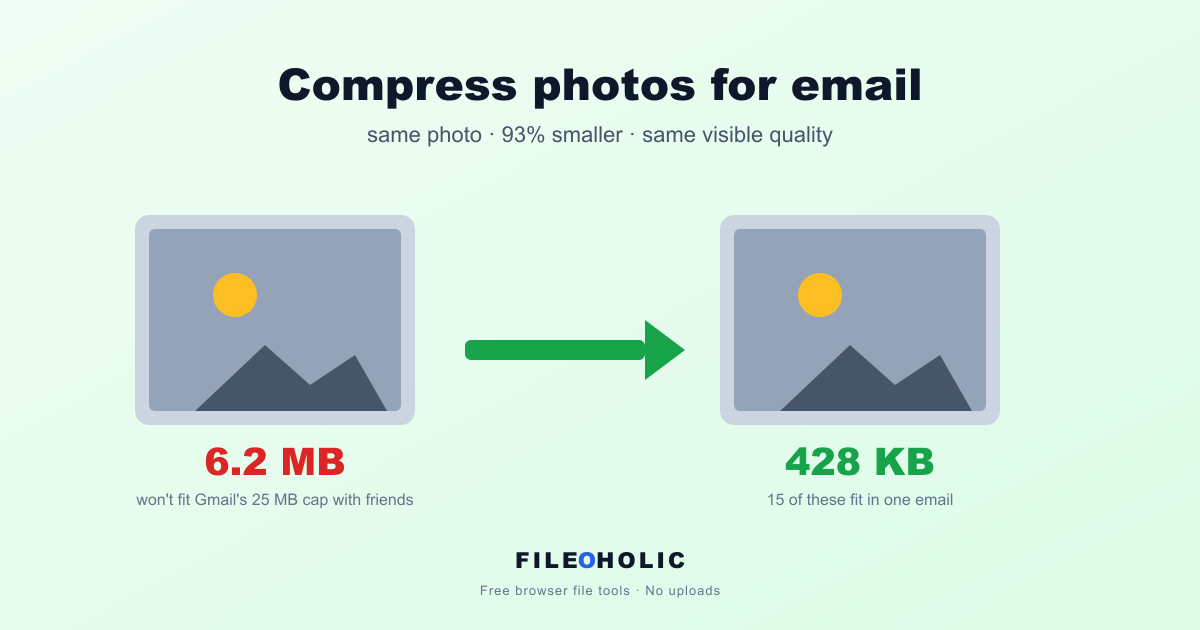
That takes a typical 6 MB photo down to roughly 400-700 KB with no visible loss. Five photos easily fit inside any inbox limit. Twenty fit inside Gmail's cap.
If the photo is for printing or archive (not screen viewing), skip the resize and use quality 90 instead. The file will be bigger but the photo stays sharp at A4 print sizes.
How to make iPhone photos smaller for email
iPhone photos are the most common culprit, for two reasons. They're shot at around 12 megapixels (roughly 4000 pixels on the long edge), and since 2017 they save as HEIC — a format that's small on the phone but that Windows machines and many web forms reject outright. So an iPhone photo is often both too big and in a format your recipient can't open.
It's the same recipe as above, with one extra move at the front if the file ends in .heic:
- Convert the HEIC to JPG first with our HEIC to JPG converter — that alone makes it openable on any device.
- Then drop the JPG into the image compressor at quality 80, 1600 px. A 5 MB iPhone photo lands around 500 KB.
Both steps run in the browser, nothing uploaded, and the photo arrives small enough to send and in a format every phone, laptop, and upload form accepts. (Already shooting JPG? Skip straight to the compressor.)
How to do this without uploading your photos
Most online compressors want you to upload the file to their server first. For a vacation snap, fine. For a passport photo, a child's school ID, or a screenshot of a private chat, it's a meaningfully worse choice.
Our image compressor drops your photo into a Web Worker, runs the browser-image-compression library, and gives it back. The file never leaves the browser tab. Verify it yourself: DevTools (F12) → Network tab → drop a photo. The page doesn't send a single request carrying your photo.
Quality vs file size, the cheat-sheet
| Setting | Use case | File size on a 6 MB source |
|---|---|---|
| Quality 95, no resize | Archive, print | ~3.5 MB |
| Quality 90, no resize | Print, web hero image | ~2.0 MB |
| Quality 80, 1600 px | Email, chat, social | ~500 KB |
| Quality 70, 1200 px | Thumbnails, WhatsApp | ~180 KB |
| Quality 50, 1200 px | Avoid (visible blocking) | ~110 KB |
Mistakes that keep showing up
Saving a JPG over and over. Every save throws away a little more quality. Compress an image at quality 80, then open and re-save at quality 80, and you're effectively at quality 65. Always compress from the original, not from a previously compressed copy.
Dragging the quality slider on a PNG. Does nothing. PNG is lossless. If you need a smaller PNG, what you actually need is a different format. JPG for photos, WebP for general use, PNG only for screenshots and graphics where transparency or pixel-perfect lines matter.
Cropping instead of compressing. Cutting the photo down to the interesting part removes pixels, so the file is smaller. But it's a different photo. Compression keeps the same image and shrinks the data behind it.
What about WebP?
WebP files are roughly 25 to 35 percent smaller than JPG at the same visible quality. Every modern email client renders WebP fine. But some corporate firewalls still strip WebP attachments, and a handful of older Windows photo viewers can't open them.
For email to a stranger, stick with JPG. For a personal site, a chat with a friend, or anywhere you control the destination, WebP wins.
The honest opinion
Most "compressed" photos on the internet are over-compressed. We see it constantly: people drop a photo into some random online tool, accept quality 50 because that's the default, and end up with a blocky version of their photo that looks worse than the JPG limits of 2006. Quality 80 is the right answer for almost every use case. The default in our compressor is 80 for exactly this reason.
FAQ
Does Gmail compress photos you attach to an email?
No. Gmail sends your attachment exactly as you attached it, up to the 25 MB limit — there is no quality-reducing recompression. If a photo looks worse after emailing, it was over-compressed before it was attached, or it was pasted inline into the message body (some clients downscale inline images). Attach the file rather than pasting it, and the recipient gets a byte-for-byte copy.
Does emailing a photo reduce its quality?
Emailing it as an attachment does not — the file travels unchanged. Quality only drops if you compress too hard before sending, paste the image into the message body instead of attaching it, or use a service that downsizes inline images. Compress sensibly (quality 80) and attach the file, and there is no extra loss in transit.
How do I make a photo small enough to email?
Two steps cover almost every case: resize to 1600 pixels on the long edge and save as JPG at quality 80. That turns a typical 6 MB phone photo into roughly 500 KB with no visible difference on screen. Our image compressor does both in one step, entirely in your browser.
Why are my iPhone photos too big to email?
iPhone photos are high-resolution (around 4000 pixels wide) and often saved as HEIC. Five of them easily exceed Gmail's 25 MB cap. Convert HEIC to JPG first so any device can open them, then compress to shrink the size — both take seconds and neither uploads your photos anywhere.
What size should a photo be for email?
For viewing on a screen, aim for under about 1 MB per photo — 1600 pixels on the long edge at JPG quality 80 gets you there with no visible loss. That keeps a batch of photos comfortably inside Gmail's 25 MB and Outlook's 10 MB limits, and they stay normal attachments instead of becoming Drive links.
Try it
If you have a photo open in Photos right now, save it to your desktop and drop it into the Fileoholic image compressor. Try quality 80 at 1600 px wide. Compare the file size to the original. That's your new email-ready version, and you didn't upload it anywhere to get it.